by administrador | Jun 18, 2017 | Cómo Cumplimentar Test - How to Complete a Test
En algunas evaluaciones que se realizan en papel, puede realizar la corrección manual del test de forma numérica fácilmente y generar el informe sin tener que rellenar un test. Para hacerlo siga estos pasos:
- Cree una invitación en el proyecto con un email (elija la opción de NO enviar la invitación al crearla)
- Seleccione la invitación con el botón azul junto al token (debe ponerse verde) y oprima el botón de “Generar”, se le abrirá un diálogo en el que debe introducir nombre, apellido y género del evaluado, así como los valores del test en papel tal y como explicamos más abajo
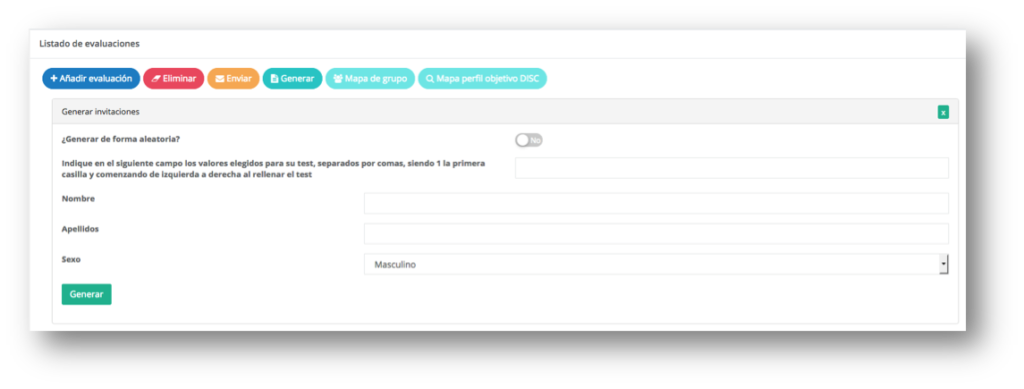
Debe introducir el valor que corresponde primero a Más y luego a Menos, separados por comas SIN ESPACIOS siendo 1 la primera casilla y comenzando de izquierda a derecha al rellenar el test.
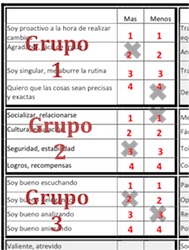
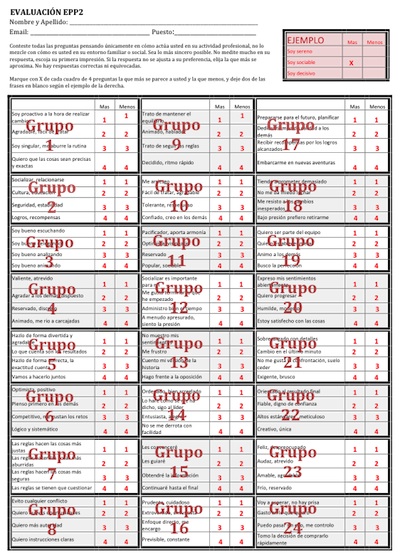
Ejemplo:
Empezamos con el primer Grupo, valor de Mas 2 y valor de menos 4, escribimos sin espacios 2,4… Seguimos con el segundo Grupo, valor de Mas 3 y valor de menos 1, seguimos escribiendo 2,4,3,1… Seguimos con el tercer Grupo, valor de Mas 2 y valor de menos 3, seguimos escribiendo 2,4,3,1,2,3… Así sucesivamente hasta tener escritos los 48 valores seguidos, separados por comas.
Una vez introducidos todos los valores separados por comas, el Nombre y Apellidos del Evaluado, el género, y damos a Generar Test. En unos segundos el informe se habrá generado y se podrá descargar.

by administrador | Jun 18, 2017 | Cómo Cumplimentar Test - How to Complete a Test
How to complete the self-assessment radar competencies of the person being assessed
When the person being evaluated access the test, will find the instructions, he must check the box of confirmation of reading.
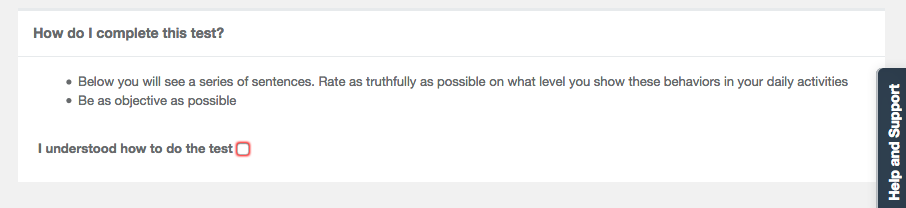
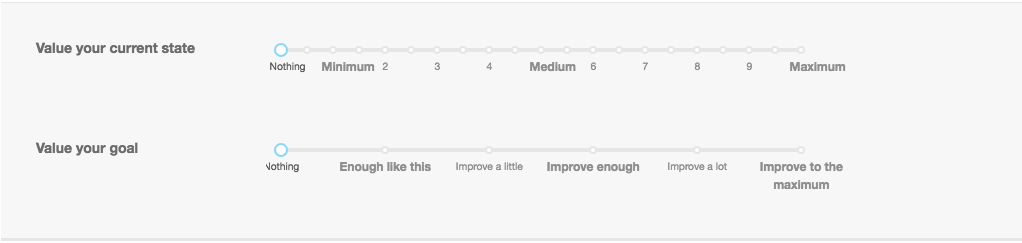
Once the reading has been confirmed, the test will appear where he must evaluate his behavior. If he is only evaluating his current state, only this one will appear, if we have configured the project so that it also evaluates its desired state, both evaluations will appear
How to complete the external evaluator’s or observer’s Competence Radar assessment
When the external evaluator or observer accesses the test he will find the instructions, he must check the box of confirmation of reading.
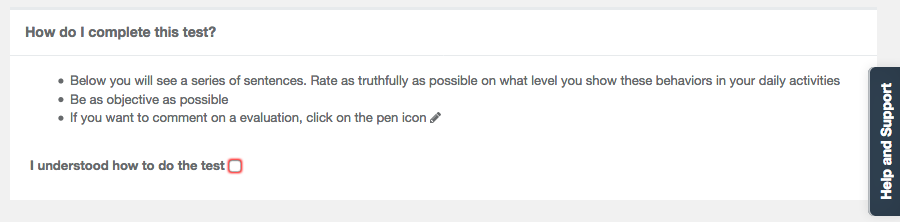
Once the reading has been confirmed, the test will appear where he must evaluate the person being evaluated. If he evaluates more than one person being evaluated, they will appear in several lines. IMPORTANT: In a project do not allow an external evaluator and observer to evaluate more than 5 or 6 people, because otherwise the task becomes tedious and our experience shows that the objectivity of the assessments suffers, especially for evaluators with DISC D and I profiles. If this has been configured in the options, the observers will see a pencil icon. When clicking opens a window for entering comments on each question (this is indicated in the test instructions). The comments will be reflected on the last page of the report, identified only by their level.


by administrador | Jun 18, 2017 | Cómo Cumplimentar Test - How to Complete a Test
The vocational module adds a second test to the DISC for young people, so at the end of the DISC, a second test will be displayed.
This test is divided into two sections, the first is an assessment of academic results in which the young person must put his score of the last years in different subjects
The second section below is a series of screens in which the young person must choose two options, each time he does so the system will open a new series of options in which he must choose two other options, until complete all the screens.

by administrador | Jun 18, 2017 | Cómo Cumplimentar Test - How to Complete a Test
When you send an invitation for a DISC evaluation, the person will receive by email a link to his or her test. Clicking on the link will take him/her to a login web page.
The user email is pre-populated (if that user has never logged in). The user must enter a password of their choice (to ensure that they can re-enter and complete the test if they leave it undone).
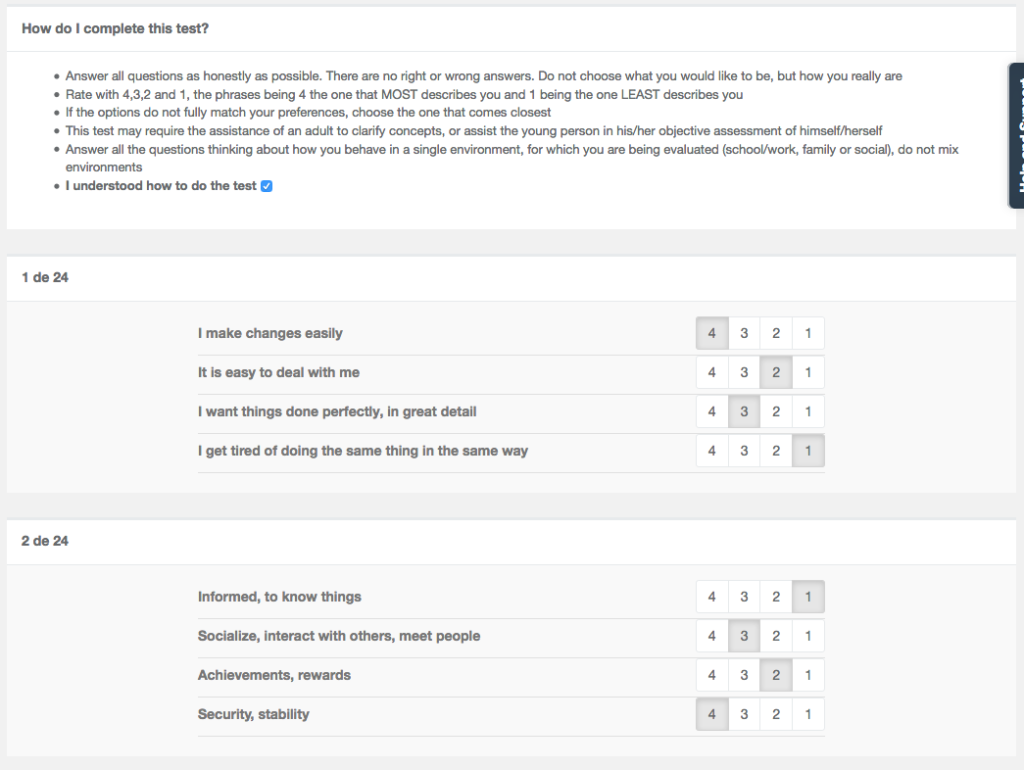
The person being assessed must accept that he or she has read the instructions, otherwise, the test cannot begin
24 groups of phrases are presented. The person being evaluated must order from 4 to 1 (using all the values, 4, 3, 2, 1), with 4 being what most describes him/her and 1 being what least. If he or she does not feel 100% identified with, he or she should also value it according to what is closest to him or her.
The evaluated must complete all 24 groups and at the end will be asked to confirm their evaluation. It is VERY important that upon confirmation he or she waits for a message to appear that his or her evaluation was generated successfully, which may take a few moments. He or she should NOT close the browser window until the success message appears.
by administrador | Jun 18, 2017 | Cómo Cumplimentar Test - How to Complete a Test
When you send an invitation for a DISC evaluation, the evaluated will receive an email with a link to his test. Clicking on the link will take him to a login page.
The user email is pre-populated (if that user has never logged in). The reviewer must enter a password of his choice (to ensure that they can re-enter and complete the test if they leave it uncompleted).
The person being assessed must accept that he has read the instructions, otherwise, he will not be able to start the test.
24 groups of phrases are presented. The person being evaluated must choose the one that describes him/her the most (+) and the one that describes him/her the least (-) and leaves two options unchecked. If the respondent does not feel 100% identified with an option in both positive and negative, he/she should choose the one that is closest to him/her.
The person being evaluated must complete all 24 groups and at the end will be asked to confirm his evaluation. It is VERY important that when he confirms it he wait for a message that the evaluation was generated successfully, which may take a few moments. He should NOT close the browser window until this success message appears.


