
2. Compare candidates vs job profile
Target Profile DISC Map (Job Profile)
You can generate a DISC target profile map (for this you need to have created target profiles in your Catalogs section). To do this select all the people you want to compare against a target profile (they must have a report generated) and click on “Target DISC map”. A dialog will open in which you can choose the target profile, choose one and press the green button “DISC target profile map”, you will download a PDF document of 3 pages with target profile report, the adequacy map and a list of the compared evaluates.

You can also compare evaluations of different projects through the General Panel of Evaluates that you will find in the menu under “Projects / Assessed General Panel”
Individualized comparison
Unlike the Target Profile DISC Map which compares the profiles of several people evaluated against the target only on the map, this option compares the DISC graph with the graph of the job profile, also compares the primary and secondary characteristics of the person with those of the job, also includes the area of improvement and the target map. This individualized report has a cost of 2 credits.
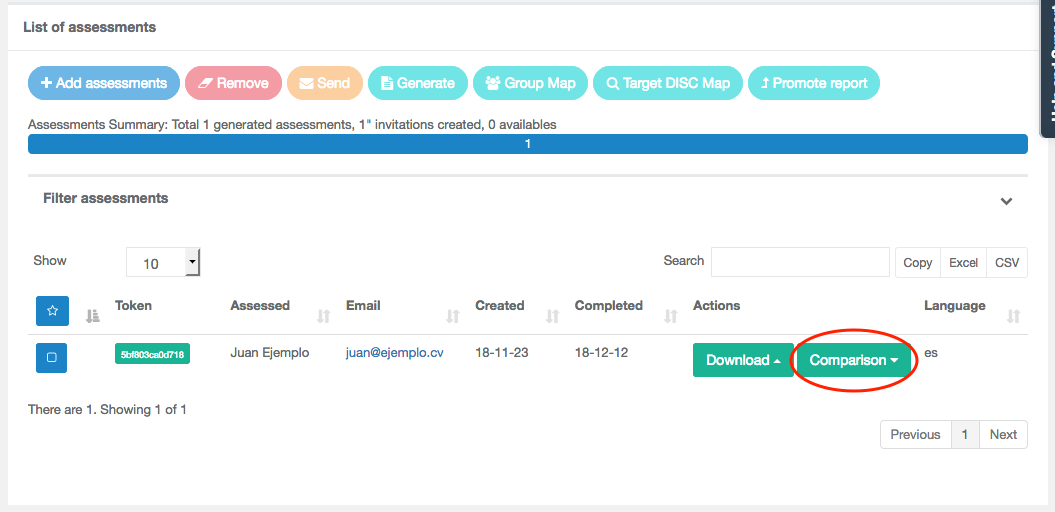
Clicking on the button will open a new dialog where we will see the list of target profiles we have created and we can select one, once selected click on the “Generate” button.

The system will inform us of the cost and whether we are sure if we want to generate it, and when we do, we will get the download button in different languages. Please note that once generated cannot be deleted or go back, so it is important to be sure that this is the right profile. You can generate several reports to the same evaluated.

You can download a report example here




